Second display
Use your iPhone or iPad as a Mac display.
Duotop can add your iPhone, iPad or iPhone Duo to your Mac as another display, sized for that screen. Put a chat, a timer, a terminal or a reference window on it and keep working on the Mac.
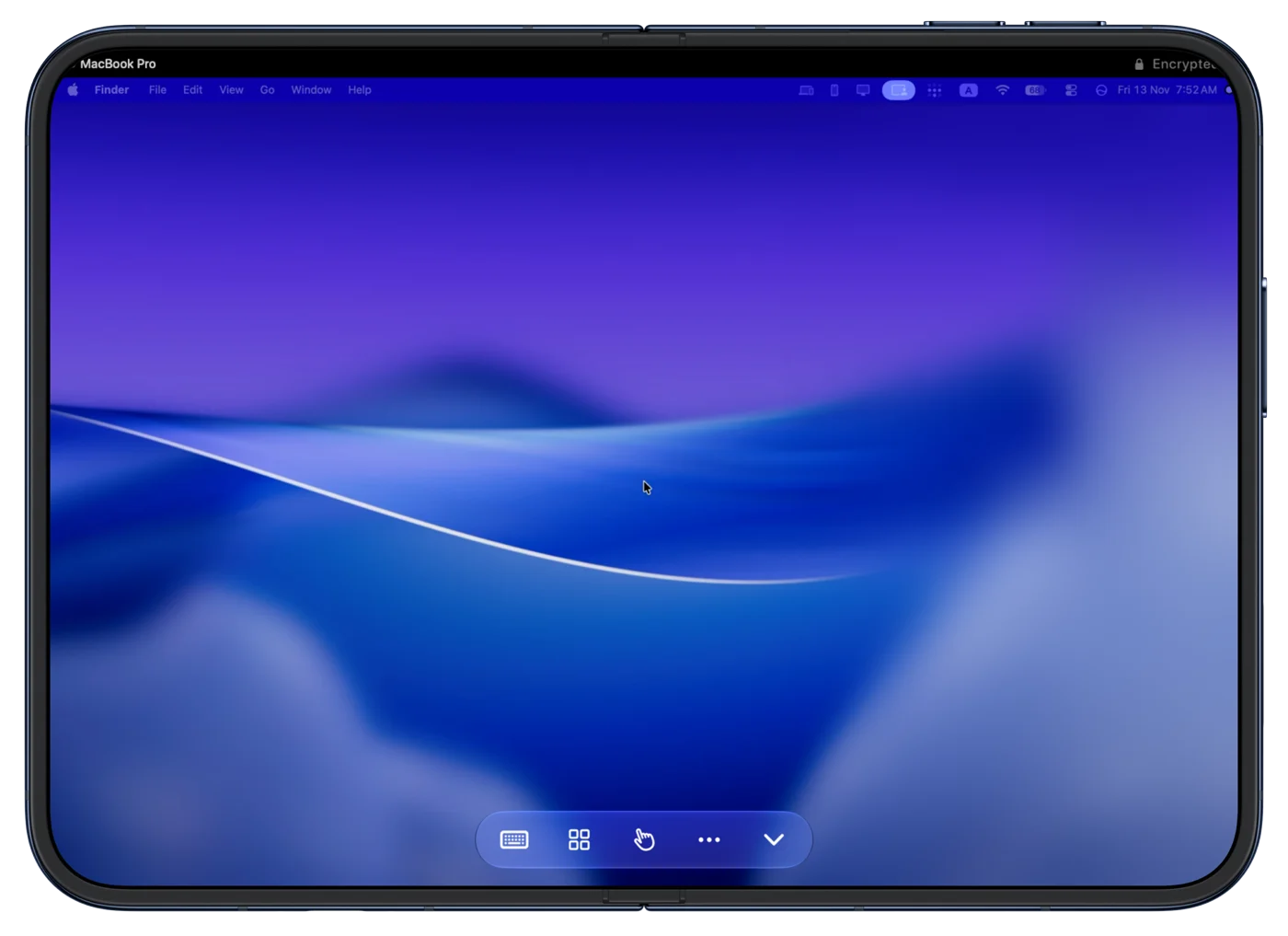
Two ways to show the Mac
Second Display
Your Mac's own screen stays as it is, and your device becomes one more display beside it. Move a window onto it and it stays there while you work on the Mac. You can also reach over and touch it.
Whole Mac Here
Your Mac's screens mirror the display made for your device, so every window is in front of you on the phone or tablet. This is the default, and it is the one to use when you are away from the Mac.
Choose between them under Mac Display in the Duotop app's Settings on your iPhone or iPad.
A display made for the screen
Duotop does not shrink a monitor-sized picture. Your device tells the Mac what shape it needs, and the Mac creates a Retina display in exactly that shape. Turn the device, or fold a Duo, and the display is rebuilt to match.
How to set it up
- Install and open Duotop for Mac, and allow Screen Recording and Accessibility when it asks.
- Open Duotop on your iPhone or iPad on the same Wi-Fi. Your Mac appears; enter the six-digit code it shows.
- In the app's Settings, set Mac Display to Second Display.
Good to know
- The picture travels over your network. On a busy or weak Wi-Fi it can be less smooth than a wired monitor.
- Free covers one Mac on the same Wi-Fi at 60 frames per second. Pro raises that to up to 120 frames per second and adds more Macs and use from anywhere.
- Sound from the Mac can play on the device, and text you copy on one can be pasted on the other.
- Everything between the two is encrypted end to end, and there is no account.
If you have an iPad next to your Mac and both use the same Apple Account, Apple's own Sidecar does this too. How Duotop compares with Apple's built-in options.
What it does not do yet
- Copying images or files between the Mac and the device. The shared clipboard carries text.
- Using the device's microphone as the Mac's microphone.
- Waking a Mac that is asleep. The Mac has to be on and awake.
Get it
You need both apps. Duotop for Mac is a free download for macOS 26 or later. The iPhone and iPad app needs iOS 26 or iPadOS 26 and is on the App Store. Pairing takes one six-digit code, and there is no account.